- Made by AppCoda
- Contact us / Support
- Tweet this book
- Preface
- 1. Introduction to SwiftUI
- 2. Getting Started with SwiftUI and Working with Text
- 3. Working with Images
- 4. Layout User Interfaces with Stacks
- 5. Understanding ScrollView and Building a Carousel UI
- 6. Working with SwiftUI Buttons and Gradient
- 7. Understanding State and Binding
- 8. Implementing Path and Shape for Line Drawing and Pie Charts
- 9. Basic Animations and Transitions
- 10. Understanding Dynamic List, ForEach and Identifiable
- 11. Working with Navigation UI and Navigation Bar Customization
- 12. Playing with Modal Views, Floating Buttons and Alerts
- 13. Building a Form with Picker, Toggle and Stepper
- 14. Data Sharing with Combine and Environment Objects
- 15. Building a Registration Form with Combine and View Model
- 16. Working with Swipe-to-Delete, Context Menu and Action Sheets
- 17. Using Gestures
- 18. Displaying an Expandable Bottom Sheet Using Presentation Detents
- 19. Creating a Tinder-like UI with Gestures and Animations
- 20. Creating an Apple Wallet like Animation and View Transition
- 21. Working with JSON, Slider and Data Filtering
- 22. Building a ToDo app with Core Data
- 23. Integrating UIKit with SwiftUI Using UIViewRepresentable
- 24. Creating a Search Bar View and Working with Custom Binding
- 25. Putting Everything Together to Build a Real World App
- 26. Creating an App Store like Animated View Transition
- 27. Building an Image Carousel
- 28. Building an Expandable List View Using OutlineGroup
- 29. Building Grid Layout Using LazyVGrid and LazyHGrid
- 30. Creating an Animated Activity Ring with Shape and Animatable
- 31. Working with AnimatableModifier and LibraryContentProvider
- 32. Working with TextEditor to Create Multiline Text Fields
- 33. Using matchedGeometryEffect to Create View Animations
- 34. ScrollViewReader and Grid Animation
- 35. Working with Tab View and Tab Bar Customization
- 36. Using AsyncImage in SwiftUI for Loading Images Asynchronously
- 37. Implementing Search Bar Using Searchable
- 38. Creating Bar Charts and Line Charts with the Charts Framework
- 39. Capturing Text within Image Using Live Text APIs
- 40. How to Use ShareLink for Sharing Data Like Text and Photos
- 41. Using ImageRenderer to Convert SwiftUI Views into Images
- 42. Creating PDF Documents Using ImageRenderer
- 43. Using Gauge to Display Progress and Create a Speedometer
- 44. Creating Grid Layout Using Grid APIs
- 45. Switching Layout with AnyLayout
- Published with GitBook
Chapter 39
Capturing Text within Image Using Live Text API
Last year, iOS 15 came with a very useful feature known as Live Text. You may have heard of the term OCR (short for Optical Character Recognition), which is the process for converting an image of text into a machine-readable text format. This is what Live Text is about.
Live Text is built-into the camera app and Photos app. If you haven't tried out this feature, simply open the Camera app. When you point the device's camera at an image of text, you will find a Live Text button at the lower-right corner. By tapping the button, iOS automatically captures the text for you. You can then copy and paste it into other applications (e.g. Notes).
This is a very powerful and convenient features for most users. As a developer, wouldn't it be great if you can incorporate this Live Text feature in your own app? In iOS 16, Apple released the Live Text API for developers to power their apps with Live Text. In this chapter, let's see how to use the Live Text API with SwiftUI.
Using DataScannerViewController
In the WWDC session about Capturing Machine-readable Codes and Text with VisionKit, Apple's engineer showed the following diagram:
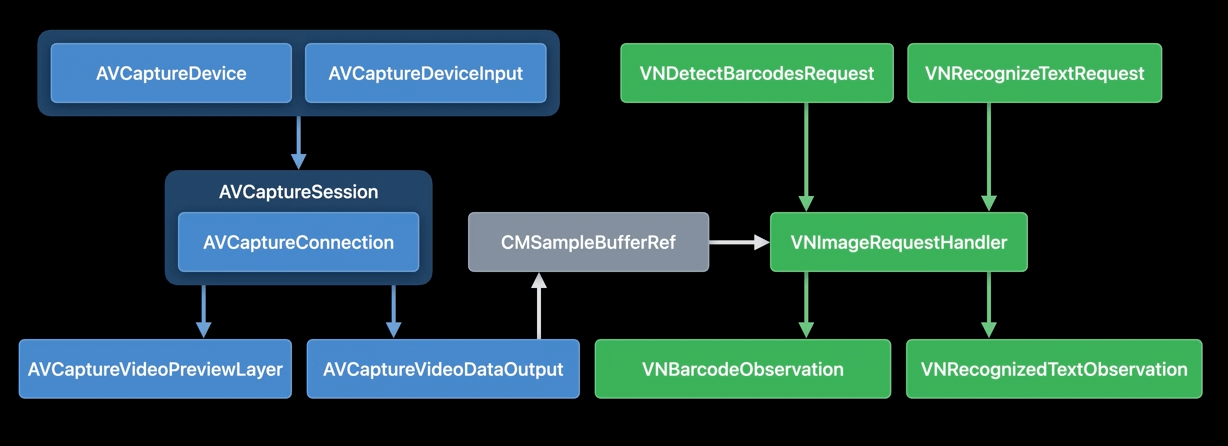
Text recognization is not a new feature on iOS 16. On older version of iOS, you can use APIs from the AVFoundation and Vision framework to detect and recognize text. However, the implementation is quite complicated, especially for those who are new to iOS development.
In iOS 16, all the above is simplified to a new class called DataScannerViewController in VisionKit. By using this view controller, your app can automatically display a camera UI with the Live Text capability.
To use the class, you first import the VisionKit framework and then check if the device supports the data scanner feature:
DataScannerViewController.isSupported
The Live Text API only supports devices released in 2018 or newer with Neural engine. On top of that, you also need to check the availability to see if the user approves the use of data scanner:
DataScannerViewController.isAvailable
Once both checks come back with positive results, you are ready to start the scanning. Here is the sample code to launch a camera with Live Text:
let dataScanner = DataScannerViewController(
                     recognizedDataTypes: [.text()],
                     qualityLevel: .balanced,
                     isHighlightingEnabled: true
                  )

present(dataScanner, animated: true) {
    try? dataScanner.startScanning()
}
All you need is create an instance of DataScannerViewController and specify the recognized data types. For text recognition, you pass .text() as the data type. Once the instance is ready, you can present it and start the scanning process by calling the startScanning() method.
Working with DataScannerViewController in SwiftUI
The DataScannerViewController class now only supports UIKit. For SwiftUI, it needs a bit of work. We have to adopt the UIViewControllerRepresentable protocol to use the class in SwiftUI projects. Assuming you've created a new Xcode project, you can now create a new file using the Swift template and name it DataScanner. To port the DataScannerViewController to SwiftUI, create a new struct named DataScanner and implement the UIViewControllerRepresentable protocol like this:
import SwiftUI
import VisionKit

struct DataScanner: UIViewControllerRepresentable {

}
This struct accepts two binding variables: one for triggering the data scanning and the other is a binding for storing the scanned text.
@Binding var startScanning: Bool
@Binding var scanText: String
To successfully adopt the UIViewControllerRepresentable protocol, we need to implement the following methods:
func makeUIViewController(context: Context) -> DataScannerViewController {
    let controller = DataScannerViewController(
                        recognizedDataTypes: [.text()],
                        qualityLevel: .balanced,
                        isHighlightingEnabled: true
                    )

    return controller
}

func updateUIViewController(_ uiViewController: DataScannerViewController, context: Context) {

    if startScanning {
        try? uiViewController.startScanning()
    } else {
        uiViewController.stopScanning()
    }
}
In the makeUIViewController method, we return an instance of DataScannerViewController. For updateUIViewController, we start (or stop) the scanning depending on the value of startScanning.
To capture the scanned text, we have to adopt the following method of DataScannerViewControllerDelegate:
func dataScanner(_ dataScanner: DataScannerViewController, didTapOn item: RecognizedItem) {
  .
  .
  .
}
The method is called when the user taps the detected text, so we will implement it like this:
class Coordinator: NSObject, DataScannerViewControllerDelegate {
    var parent: DataScanner

    init(_ parent: DataScanner) {
        self.parent = parent
    }

    func dataScanner(_ dataScanner: DataScannerViewController, didTapOn item: RecognizedItem) {
        switch item {
        case .text(let text):
            parent.scanText = text.transcript
        default: break
        }
    }

}

func makeCoordinator() -> Coordinator {
    Coordinator(self)
}
We check the recognized item and store the scanned text if any text is recognized. Lastly, insert this line of code in the makeUIViewController method to configure the delegate:
controller.delegate = context.coordinator
This controller is now ready for use in SwiftUI views.
Capturing Text Using DataScanner
As an example, we will build a text scanner app with a very simple user interface. When the app is launched, it automatically displays the camera view for live text. When text is detected, users can tap the text to capture it. The scanned text is displayed in the lower part of the screen.
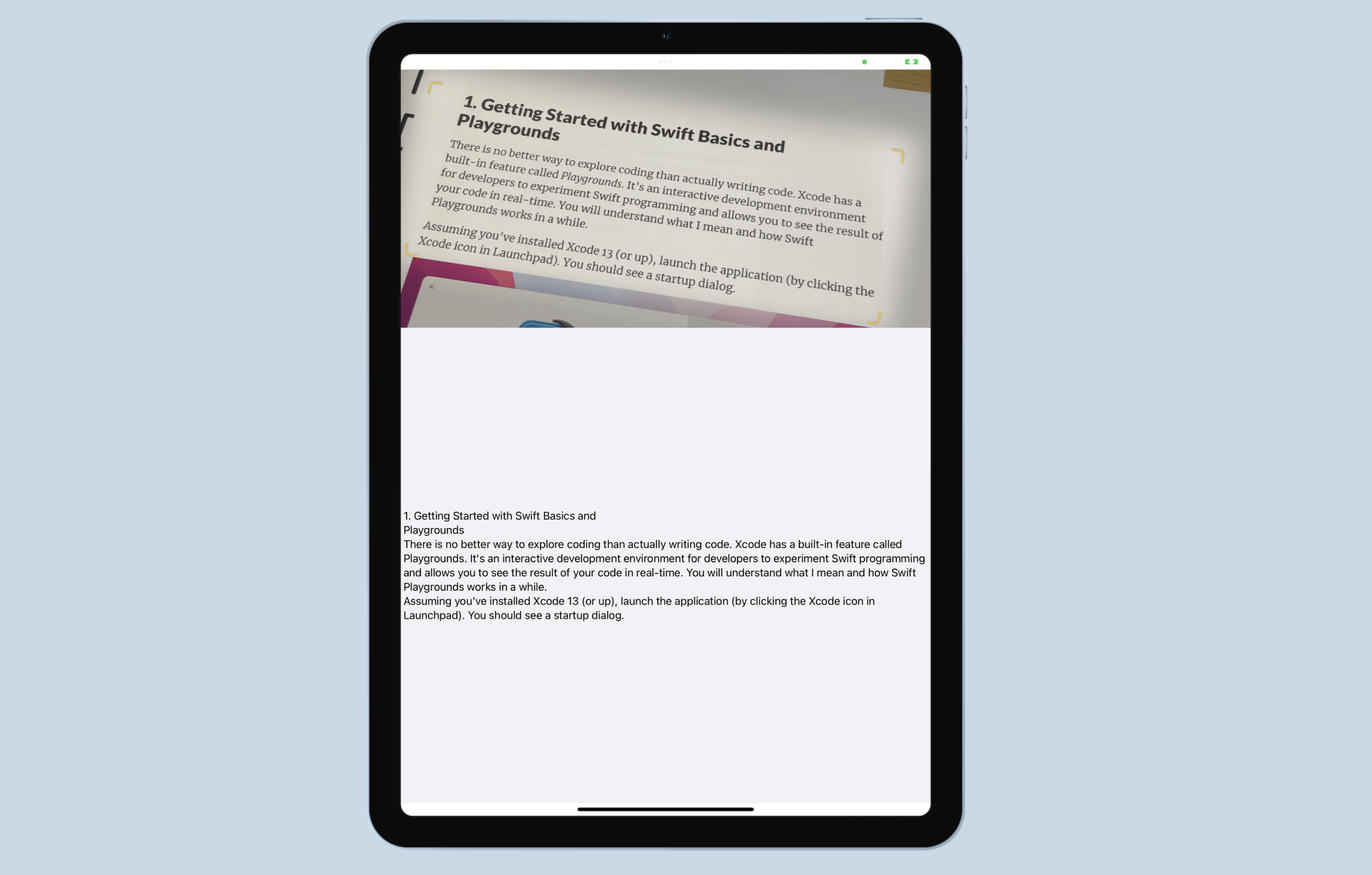
Assuming you've created a standard SwiftUI project, open ContentView.swift and the VisionKit framework.
import VisionKit
Next, declare a couple of state variables to control the operation of the data scanner and the scanned text.
@State private var startScanning = false
@State private var scanText = ""
For the body part, let's update the code like this:
VStack(spacing: 0) {
    DataScanner(startScanning: $startScanning, scanText: $scanText)
        .frame(height: 400)

    Text(scanText)
        .frame(minWidth: 0, maxWidth: .infinity, maxHeight: .infinity)
        .background(in: Rectangle())
        .backgroundStyle(Color(uiColor: .systemGray6))

}
.task {
    if DataScannerViewController.isSupported && DataScannerViewController.isAvailable {
        startScanning.toggle()
    }
}
We start the data scanner when the app launches. But before that, we call DataScannerViewController.isSupported and DataScannerViewController.isAvailable to ensure Live Text is supported on the device.
The demo app is almost ready to test. Since Live Text requires Camera access, please remember to go to the project configuration. Add the key Privacy - Camera Usage Description in the Info.plist file and specify the reason why your app needs to access the device's camera.
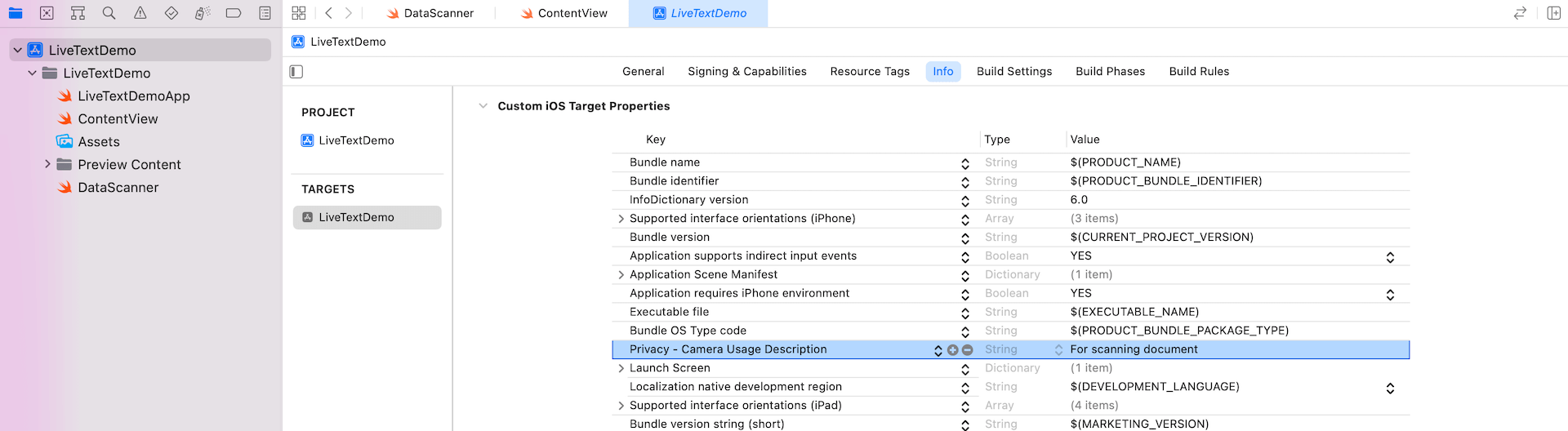
After the changes, you can deploy the app to a real iOS device and test the Live Text function.
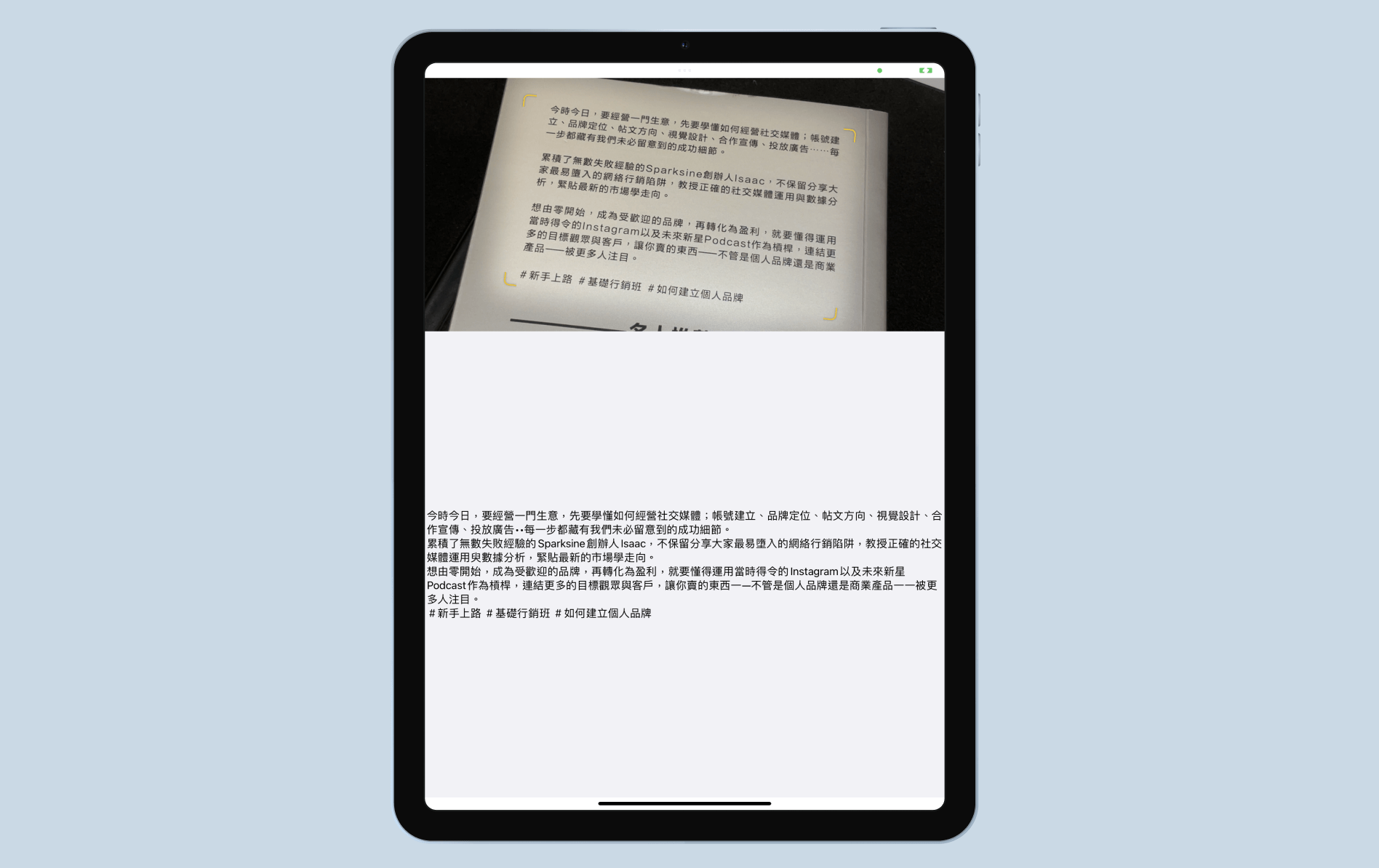
Other than English, Live Text also supports French, Italian, German, Spanish, Chinese, Portuguese, Japanese, and Korean.
Summary
It's great to see Apple open up the Live Text feature to iOS developers. Though the new DataScannerViewController is not specifically designed for SwiftUI, we can easily port it to our Swift project and incorporate the live text feature in our own apps. If you are going to publish your next app update, consider to bundle this great feature. It'll definitely improve the user experience.
For reference, you can download the complete project here: