- Made by AppCoda
- Contact us / Support
- Tweet this book
- Preface
- 1. Introduction to SwiftUI
- 2. Getting Started with SwiftUI and Working with Text
- 3. Working with Images
- 4. Layout User Interfaces with Stacks
- 5. Understanding ScrollView and Building a Carousel UI
- 6. Working with SwiftUI Buttons and Gradient
- 7. Understanding State and Binding
- 8. Implementing Path and Shape for Line Drawing and Pie Charts
- 9. Basic Animations and Transitions
- 10. Understanding Dynamic List, ForEach and Identifiable
- 11. Working with Navigation UI and Navigation Bar Customization
- 12. Playing with Modal Views, Floating Buttons and Alerts
- 13. Building a Form with Picker, Toggle and Stepper
- 14. Data Sharing with Combine and Environment Objects
- 15. Building a Registration Form with Combine and View Model
- 16. Working with Swipe-to-Delete, Context Menu and Action Sheets
- 17. Using Gestures
- 18. Displaying an Expandable Bottom Sheet Using Presentation Detents
- 19. Creating a Tinder-like UI with Gestures and Animations
- 20. Creating an Apple Wallet like Animation and View Transition
- 21. Working with JSON, Slider and Data Filtering
- 22. Building a ToDo app with Core Data
- 23. Integrating UIKit with SwiftUI Using UIViewRepresentable
- 24. Creating a Search Bar View and Working with Custom Binding
- 25. Putting Everything Together to Build a Real World App
- 26. Creating an App Store like Animated View Transition
- 27. Building an Image Carousel
- 28. Building an Expandable List View Using OutlineGroup
- 29. Building Grid Layout Using LazyVGrid and LazyHGrid
- 30. Creating an Animated Activity Ring with Shape and Animatable
- 31. Working with AnimatableModifier and LibraryContentProvider
- 32. Working with TextEditor to Create Multiline Text Fields
- 33. Using matchedGeometryEffect to Create View Animations
- 34. ScrollViewReader and Grid Animation
- 35. Working with Tab View and Tab Bar Customization
- 36. Using AsyncImage in SwiftUI for Loading Images Asynchronously
- 37. Implementing Search Bar Using Searchable
- 38. Creating Bar Charts and Line Charts with the Charts Framework
- 39. Capturing Text within Image Using Live Text APIs
- 40. How to Use ShareLink for Sharing Data Like Text and Photos
- 41. Using ImageRenderer to Convert SwiftUI Views into Images
- 42. Creating PDF Documents Using ImageRenderer
- 43. Using Gauge to Display Progress and Create a Speedometer
- 44. Creating Grid Layout Using Grid APIs
- 45. Switching Layout with AnyLayout
- Published with GitBook
Chapter 36
Using AsyncImage in SwiftUI for Loading Images Asynchronously
In WWDC 2021, Apple announced tons of new features for the SwiftUI framework to make developers’ life easier. AsyncImage was definitely one of the most anticipated features, introduced in iOS 15. If your app needs to retrieve and display images from remote servers, this view saves you from writing your own code to handle asynchronous download.
AsyncImage is a built-in view for loading and displaying remote images asynchronously. All you need is to tell it what the image URL is. AsyncImage then does the heavy lifting to grab the remote image and show it on screen.
In this chapter, I will show you how to work with AsyncImage in SwiftUI projects.
The Basic Usage of AsyncImage
The simplest way to use AsyncImage is by specifying the image URL like this:
AsyncImage(url: URL(string: imageURL))
AsyncImage then connects to the given URL and download the remote image asynchronously. It also automatically renders a placeholder in gray while the image is not yet ready for display. Once the image is completely downloaded, AsyncImage displays the image in its intrinsic size.
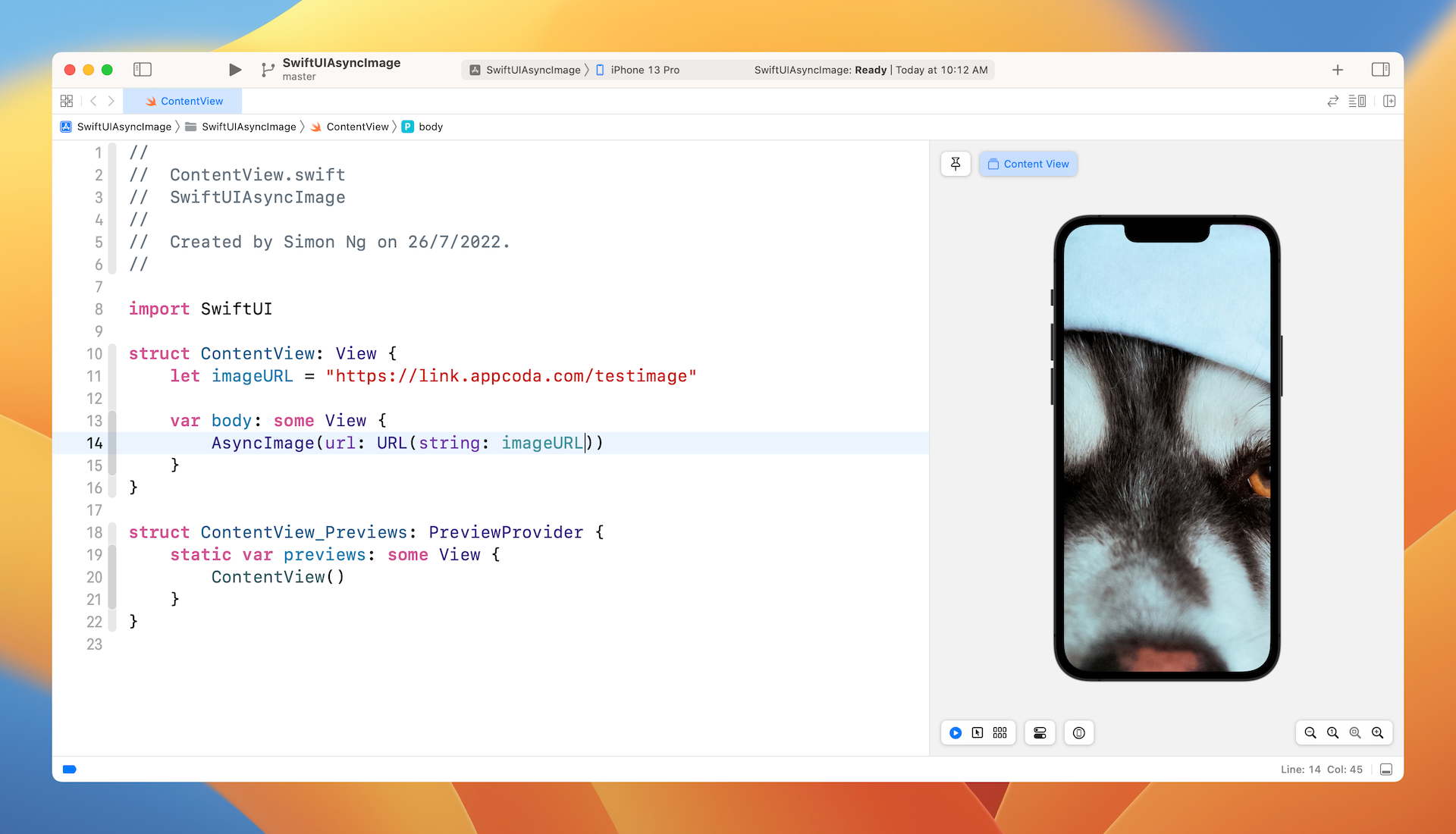
Assuming that you've created a new SwiftUI project in Xcode, you can replace the code in ContentView like this to have a try:
struct ContentView: View {
    let imageURL = "https://link.appcoda.com/testimage"

    var body: some View {
        AsyncImage(url: URL(string: imageURL))
    }
}
In the preview canvas, you should immediately see a placeholder in gray, followed by the image. It takes a few seconds for the image to download. Thus, iOS displays the placeholder.
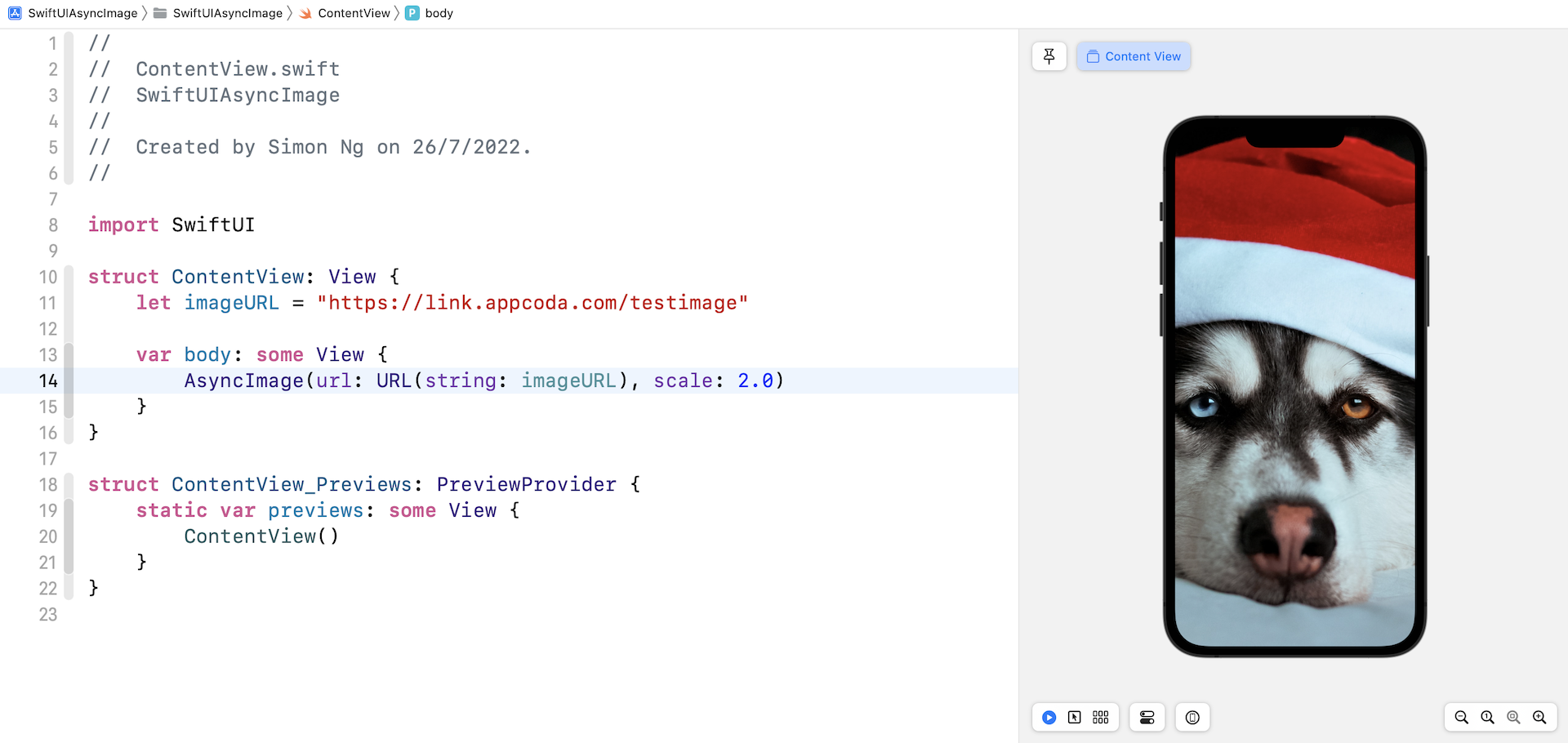
If you want to make the image smaller or larger, you can pass a scaling value to the scale parameter like this:
AsyncImage(url: URL(string: imageURL), scale: 2.0)
A value greater than 1.0 will scale down the image. Conversely, a value less than 1 will make the image bigger.
Customizing the Image Size and PlaceHolder
AsyncImage provides another constructor for developers if you need further customization:
init<I, P>(url: URL?, scale: CGFloat, content: (Image) -> I, placeholder: () -> P)
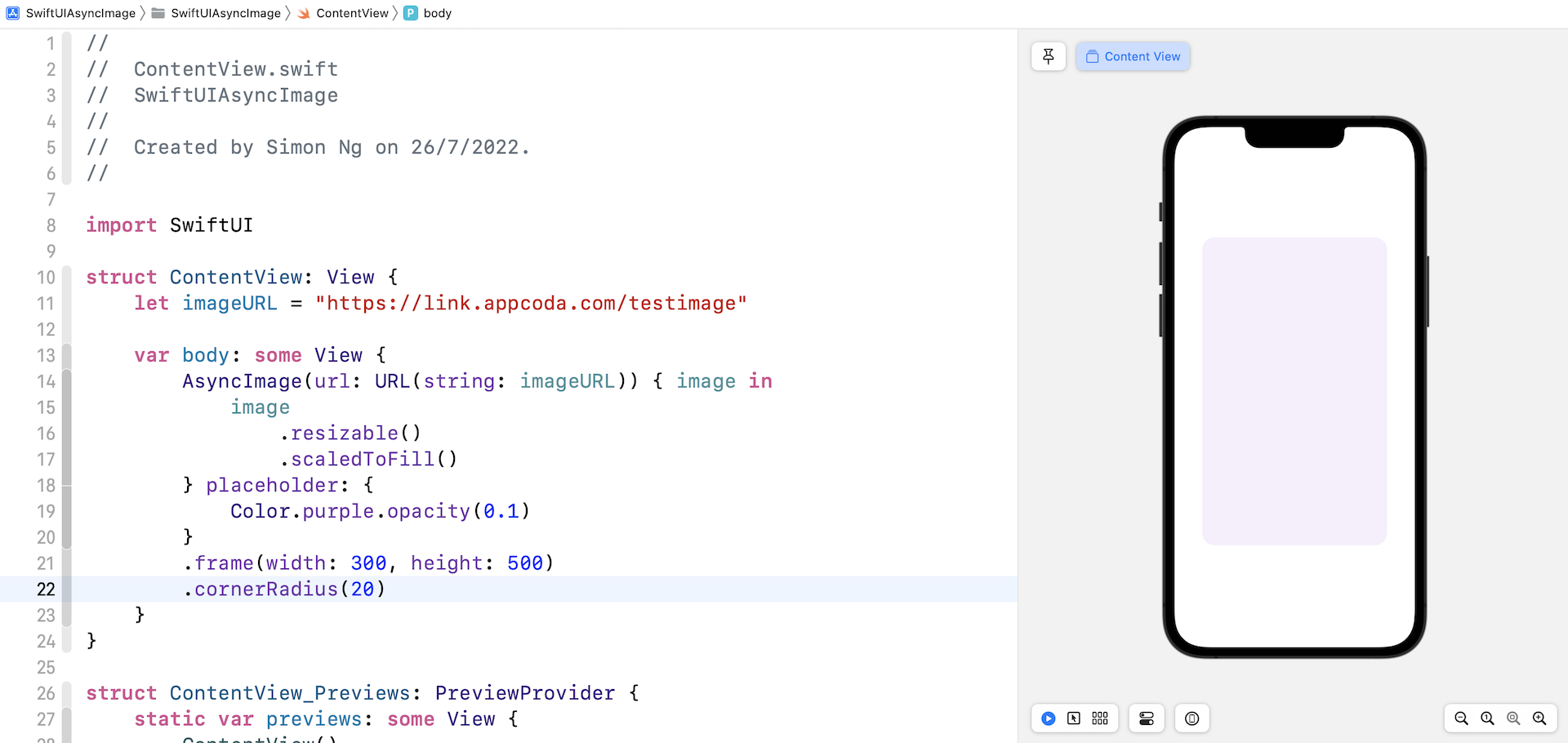
By initializing AsyncImage using the init above, we can resize and scale the downloaded image to the preferred size. On top of that, we can provide our own implementation for the placeholder. Here is a sample code snippet:
AsyncImage(url: URL(string: imageURL)) { image in
    image
        .resizable()
        .scaledToFill()
} placeholder: {
    Color.purple.opacity(0.1)
}
.frame(width: 300, height: 500)
.cornerRadius(20)
In the code above, AsyncImage provides the resulting image for manipulation. We then apply the resizable() and scaledToFill() modifier to resize the image. For the AsyncImage view, we limit its size to 300×500 points.
The placeholder parameter allows us to create our own placeholder instead of using the default one. Here, we display a placeholder in light purple.
Handling Different Phases of the Asynchronous Operation
The AsyncImage view provides another constructor if you need to provide a better control for the asynchronous download operation:
init(url: URL?, scale: CGFloat, transaction: Transaction, content: (AsyncImagePhase) -> Content
AsyncImagePhase is an enum that keeps track of the current phase of the download operation. You can provide detailed implementation for each of the phases including empty, failure, and success.
Here is a sample code snippet:
AsyncImage(url: URL(string: imageURL)) { phase in
    switch phase {
    case .empty:
        Color.purple.opacity(0.1)
    case .success(let image):
        image
            .resizable()
            .scaledToFill()
    case .failure(_):
        Image(systemName: "exclamationmark.icloud")
            .resizable()
            .scaledToFit()
    @unknown default:
        Image(systemName: "exclamationmark.icloud")
    }
}
.frame(width: 300, height: 300)
.cornerRadius(20)
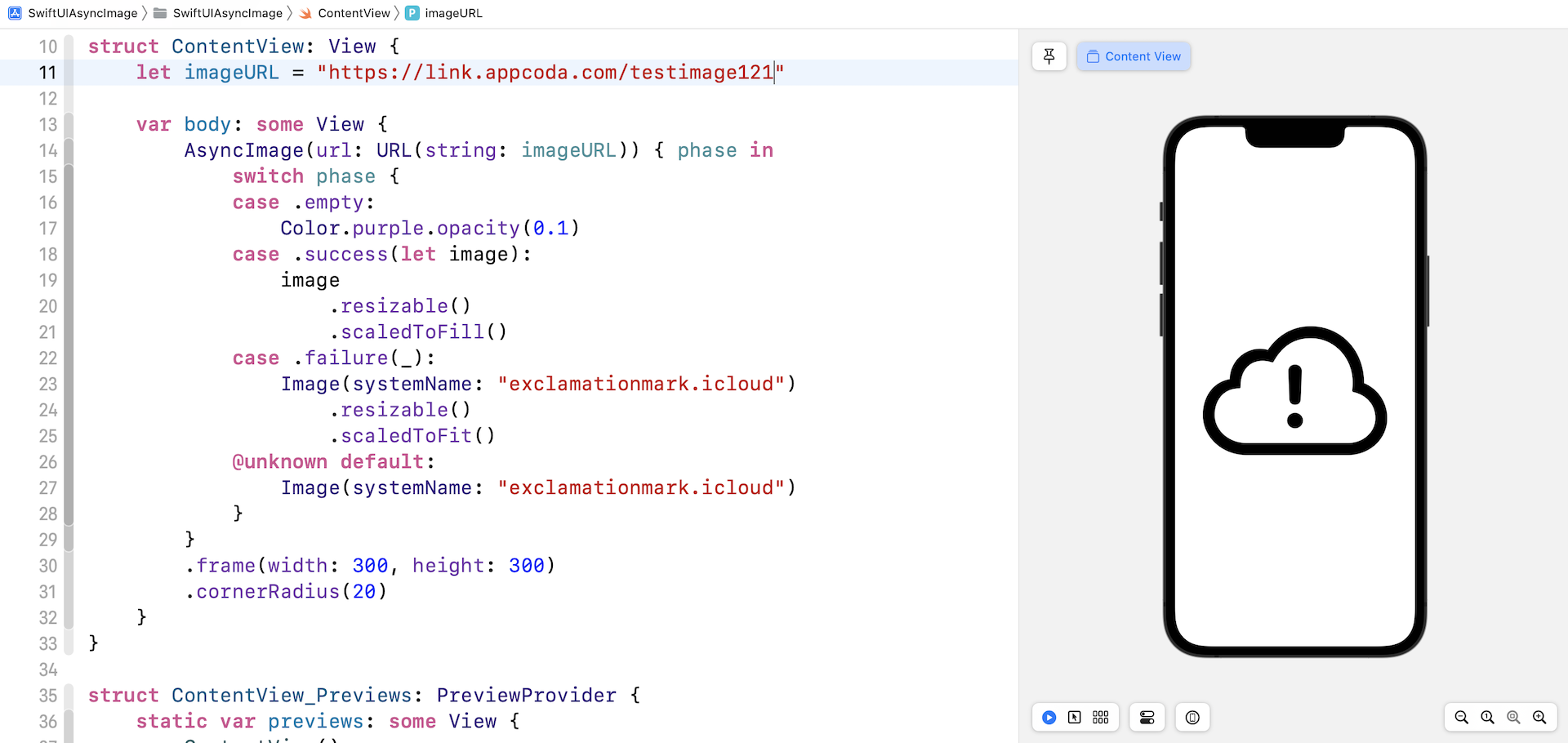
The empty state indicates that the image is not loaded. In this case, we display a placeholder. For the success state, we apply a couple of modifiers and display it on screen. The failure state allows you to provide an alternate view if there is any errors. In the code above, we simply display a system image. If you updated the imageURL to an invalid URL, the app now displays an exclamation mark image.
Adding Animation with Transaction
The same init lets you specify an optional transaction when the phase changes. For example, the following code snippet specifies to use a spring animation in the transaction parameter:
AsyncImage(url: URL(string: imageURL), transaction: Transaction(animation: .spring())) { phase in
    switch phase {
    case .empty:
        Color.purple.opacity(0.1)

    case .success(let image):
        image
            .resizable()
            .scaledToFill()

    case .failure(_):
        Image(systemName: "exclamationmark.icloud")
            .resizable()
            .scaledToFit()

    @unknown default:
        Image(systemName: "exclamationmark.icloud")
    }
}
.frame(width: 300, height: 500)
.cornerRadius(20)
By doing so, you will see a fade-in animation when the image is downloaded. If you test the code in the preview pane, it won’t work. Please make sure you test the code in a simulator to see the animation.
You can also attach the transition modifier to the image view like this:
case .success(let image):
    image
        .resizable()
        .scaledToFill()
        .transition(.slide)
This creates a slide-in animation when displaying the resulting image.
Summary
In this chapter, we showed you a very useful view called AsyncImage. With this feature, it is very easy to download and display remote images. All you need is specify the URL of the image and the AsyncImage view will do all the heavy liftings for you.
For reference, you can download the complete demo project here: